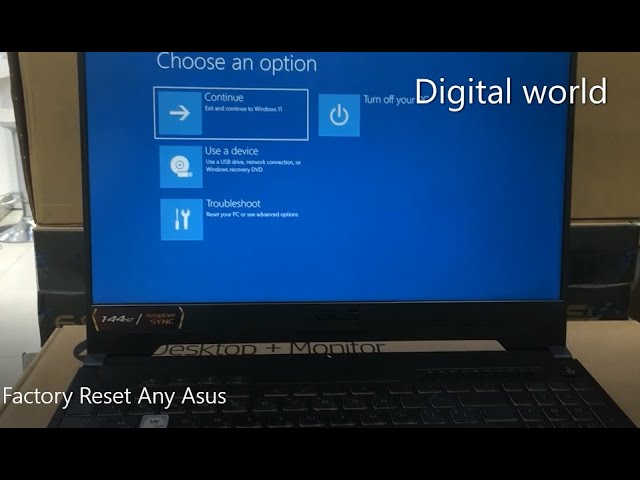
# Resetting Your Asus Laptop to Factory Settings: A Comprehensive Guide
Experiencing performance issues, preparing to sell your device, or simply wanting a fresh start? Resetting your Asus laptop to its factory settings can resolve many software-related problems and return your system to its original, out-of-the-box state. This process effectively erases all your personal data, installed applications, and customized settings, similar to giving your laptop a clean slate. Understanding how to perform this crucial maintenance task can save you time and hassle in the long run, ensuring your Asus laptop continues to run smoothly and efficiently. This guide will walk you through the entire process, from preparation to completion, making it accessible even for those less familiar with technical procedures.
Before diving into the reset process, it’s essential to back up all your important data. This includes documents, photos, videos, and any other files you cannot afford to lose. The factory reset will wipe your hard drive completely, so external hard drives, cloud storage services, or USB drives are your best friends during this preparatory phase. Ensure your laptop is connected to a reliable power source throughout the reset to prevent any interruptions that could corrupt the process.
| Category | Information |
| :——————– | :———————————————————————————————————————————————————————————————————————————————————————————————————————————————————————————————————————————————————————————————————————————————————————————————————————————————————————————————————————————————————————————————————————————————————————————————————————————————————————————————————————————————————————————————————————————– |
| **Device** | Asus Laptop |
| **Operating System** | Windows 10 / Windows 11 (process may vary slightly based on version) |
| **Purpose of Reset** | Troubleshooting performance issues, removing malware, preparing for sale/transfer, clean start. |
| **Data Impact** | All personal files, applications, settings, and accounts will be removed. |
| **Prerequisites** | **1. Backup Data:** Ensure all important files are saved to an external drive or cloud storage.
**2. Power Source:** Connect the laptop to AC power.
**3. Windows Password:** Have your Windows login password ready.
**4. Internet Connection:** Recommended for downloading necessary updates during setup. |
| **Reset Options** | **Keep My Files:** Reinstalls Windows and removes apps and settings, but keeps personal files.
**Remove Everything:** Reinstalls Windows and removes everything. This is a true factory reset. |
| **Reference Website** | [Asus Support](https://www.asus.com/support/) (Official support portal for drivers, manuals, and troubleshooting.) |
## Preparing Your Asus Laptop for a Factory Reset
Before initiating the reset, consider the following crucial steps to ensure a smooth transition and data security.
### Backing Up Your Data
This is the most critical step. Without a proper backup, all your valuable documents, photos, and other personal files will be permanently lost.
* **External Hard Drive/SSD:** Connect an external storage device and copy all essential folders and files.
* **Cloud Storage:** Utilize services like OneDrive, Google Drive, Dropbox, or others to upload your files. Ensure the upload is complete before proceeding.
* **USB Flash Drives:** For smaller amounts of data, USB drives can also be a viable option.
### Ensuring Sufficient Power
A factory reset can take a considerable amount of time, often ranging from one to several hours depending on your laptop’s specifications and the chosen reset option. It is imperative to keep your laptop plugged into a power outlet throughout the entire process. A sudden power loss during the reset can lead to system instability or potential data corruption, requiring more complex recovery procedures.
### Gathering Necessary Information
Make sure you have your Windows login password readily available. You will need it to log back into your system after the reset. If you plan to reinstall specific applications, it’s also a good idea to have any relevant product keys or installation media (if applicable) organized.
## How to Perform a Factory Reset on Your Asus Laptop
The process of resetting your Asus laptop to factory settings is primarily done through Windows’ built-in recovery options.
### Using Windows Settings (Recommended for Windows 10 & 11)
This is the most straightforward method and can be accessed directly from your Windows desktop.
1. **Open Settings:** Click the Start menu and select the gear icon for “Settings.”
2. **Navigate to Update & Security:** In Windows 10, select “Update & Security.” In Windows 11, select “System” and then “Recovery.”
3. **Select Recovery:** Choose “Recovery” from the left-hand menu.
4. **Reset this PC:** Under the “Reset this PC” option, click “Get started.”
5. **Choose an Option:** You will be presented with two choices:
* **Keep my files:** This option reinstalls Windows and removes your apps and settings but keeps your personal files. It’s a good option if you’re troubleshooting software issues and want to keep your data intact.
* **Remove everything:** This option reinstalls Windows and removes all personal files, apps, and settings. This is the true factory reset and is recommended if you are selling or giving away your laptop, or if you want a completely clean start.
6. **Cloud Download vs. Local Reinstall:** You might be prompted to choose between “Cloud download” and “Local reinstall.”
* **Cloud download:** Downloads a fresh copy of Windows from Microsoft’s servers. This is often preferred as it ensures you have the latest version and can fix corrupted system files. It requires a stable internet connection.
* **Local reinstall:** Uses the recovery files already present on your device. This is faster if your current Windows installation is healthy.
7. **Additional Settings:** Depending on your choice, you might see options for “Change settings.” If you selected “Remove everything,” you might have the option to “Clean data?” or “Fully clean the drive.” Choosing to fully clean the drive makes it much harder for data to be recovered, which is highly recommended if you’re selling the laptop.
8. **Confirm and Reset:** Review the summary of what will happen and click “Reset.” Your laptop will now begin the reset process, which may take some time.
The “Remove everything” option is the most thorough way to reset your laptop. It ensures that all your personal data, installed programs, and configurations are wiped clean, leaving the system as if it were brand new. This is crucial for privacy and security when transferring ownership of the device.
### Using Asus Product Recovery (Older Models or Specific Scenarios)
Some older Asus models or specific recovery partitions might offer an Asus-branded recovery tool. The exact method can vary, but it typically involves accessing a recovery partition during boot-up.
1. **Restart Your Laptop:** Shut down your computer completely.
2. **Access Recovery:** As the laptop starts to boot up, repeatedly press a specific key (often F9, F10, or F12 – check your model’s manual or Asus support website for the exact key).
3. **Follow On-Screen Prompts:** If successful, a recovery environment will load. Navigate through the menus to find the option for system recovery or factory reset.
4. **Select Reset Option:** Choose the option to restore your system to factory default settings. Be sure to select the correct option, as some recovery tools might offer system repair as well.
This method relies on a recovery partition that may have been deleted or corrupted on some systems, making the Windows Settings method generally more reliable for modern Asus laptops.
## Post-Reset Setup
Once the reset process is complete, your Asus laptop will restart, and you’ll be greeted with the initial Windows setup screen, much like when you first purchased the device.
* **Language and Region:** Select your preferred language, region, and keyboard layout.
* **Connect to Network:** Connect to your Wi-Fi network.
* **Account Sign-in:** Sign in with your Microsoft account or create a new one. If you chose “Remove everything,