# Unveiling Your Motherboard: A Comprehensive Guide to Identifying Your System’s Core
Your computer’s motherboard, often called the mainboard or mobo, is the central nervous system of your entire setup. It’s a complex circuit board that connects all the essential components, including the CPU, RAM, graphics card, and storage drives. Understanding which motherboard you have is crucial for several reasons: it dictates compatibility with new hardware, informs troubleshooting steps when issues arise, and can even hint at the overall quality and capabilities of your system. Whether you’re planning an upgrade, diagnosing a problem, or simply curious about your machine’s inner workings, this guide will walk you through the straightforward process of identifying your motherboard.
This exploration will not only demystify the process of motherboard identification but also equip you with the knowledge to confidently navigate your system’s hardware. From utilizing built-in Windows tools to employing third-party software and even physically inspecting your hardware, each method offers a clear path to uncovering this vital piece of information.
## Why Identifying Your Motherboard Matters
Before diving into the “how-to,” it’s essential to grasp *why* knowing your motherboard is important.
* **Upgrade Compatibility:** Motherboards have specific sockets for CPUs and slots for RAM. If you’re considering a CPU or RAM upgrade, you *must* know your motherboard model to ensure the new components will fit and function correctly.
* **Troubleshooting:** When your computer behaves erratically, identifying the motherboard can be the first step in diagnosing the issue. Specific motherboard models might have known quirks or require particular drivers that can be sourced once you know the exact model.
* **Driver Updates:** Motherboard manufacturers release updated drivers for various components (audio, network, chipset, etc.). Having the correct model allows you to download the latest, most stable drivers from the manufacturer’s website.
* **BIOS/UEFI Access:** The BIOS (Basic Input/Output System) or UEFI (Unified Extensible Firmware Interface) is the firmware that initializes your hardware during boot-up. Knowing your motherboard model helps you access the correct BIOS/UEFI settings and download potential firmware updates.
## Methods for Checking Your Motherboard
There are several reliable ways to check your motherboard model without needing to physically open your computer.
### Method 1: Using System Information in Windows
Windows provides a built-in tool that can often display your motherboard’s model directly.
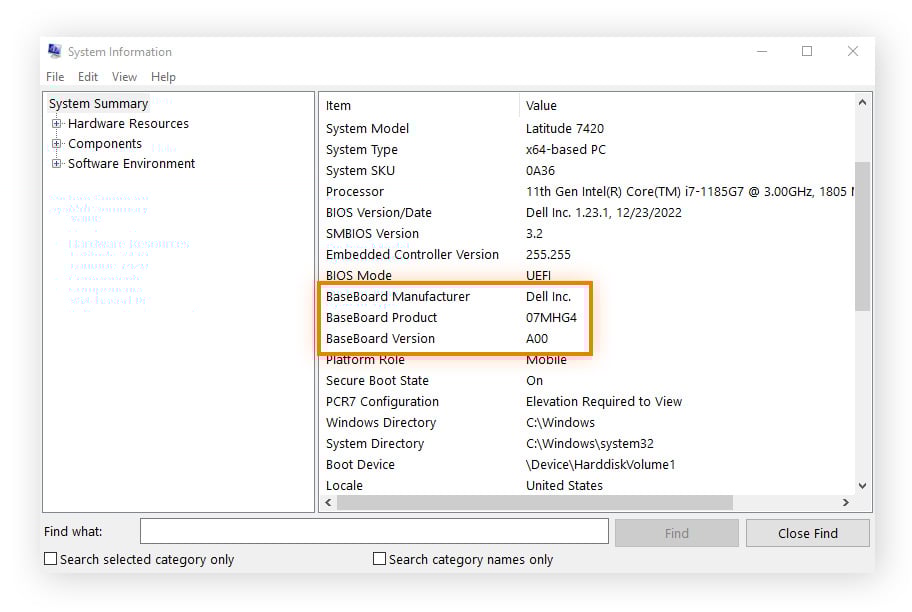
1. **Open System Information:** Press the `Windows key + R` to open the Run dialog box. Type `msinfo32` and press Enter.
2. **Locate Motherboard Information:** In the System Information window, navigate to “System Summary” on the left-hand pane. Look for “BaseBoard Manufacturer,” “BaseBoard Product,” and “BaseBoard Version” on the right. The “BaseBoard Product” (or sometimes “System Model” or “Mainboard Product Name”) will typically be your motherboard’s model number.
The “BaseBoard” terminology is often used by Windows to refer to the motherboard, as it’s the primary board upon which other components are built.
### Method 2: Using Command Prompt (CMD)
The Command Prompt offers another swift way to retrieve motherboard details using a simple command.
1. **Open Command Prompt:** Search for “cmd” in the Windows search bar and open the Command Prompt application.
2. **Enter the Command:** Type the following command and press Enter:
`wmic baseboard get product,Manufacturer,version,serialnumber`
3. **Interpret the Output:** This command will display the manufacturer, product name (your motherboard model), version, and serial number of your motherboard.
### Method 3: Using DirectX Diagnostic Tool (dxdiag)
The DirectX Diagnostic Tool is primarily for graphics and sound issues, but it also holds motherboard information.
1. **Open DirectX Diagnostic Tool:** Press `Windows key + R`, type `dxdiag`, and press Enter. You may be prompted about checking drivers; click “Yes.”
2. **Find System Information:** Once the tool loads, look for the “System Manufacturer” and “System Model” fields on the main “System” tab. While “System Model” can sometimes refer to the entire computer or laptop chassis, the “System Manufacturer” can often guide you to the motherboard manufacturer if it’s a custom build. For pre-built systems, this field might directly list the motherboard model.
### Method 4: Third-Party Software
Several free utility programs can provide detailed hardware information, including your motherboard. CPU-Z is a popular and reliable choice.
1. **Download and Install CPU-Z:** Visit the official CPU-Z website and download the installer.
2. **Run CPU-Z:** Install and run the application.
3. **Check the “Mainboard” Tab:** Navigate to the “Mainboard” tab within CPU-Z. Here you will find the Manufacturer and Model of your motherboard clearly displayed.
CPU-Z is an invaluable tool for any PC enthusiast, offering extensive details about your CPU, RAM, and motherboard.
### Method 5: Physical Inspection (If Necessary)
If the software methods are not yielding clear results, you may need to visually inspect the motherboard itself. **Ensure your computer is powered off and unplugged before proceeding.**
1. **Open Your Computer Case:** Carefully remove the side panel of your computer case.
2. **Locate the Motherboard:** The motherboard is the largest circuit board inside your PC, typically occupying most of the case’s interior.
3. **Look for Markings:** Examine the motherboard for printed text. The manufacturer’s name (e.g., ASUS, Gigabyte, MSI, ASRock) and the specific model number are usually printed in large, clear font, often near the CPU socket, RAM slots, or PCI-e slots.
## Frequently Asked Questions (FAQ)
**Q1: What is the difference between a motherboard and a CPU?**
A1: The CPU (Central Processing Unit) is the “brain” of the computer, performing calculations. The motherboard is the circuit board that everything connects to, allowing the CPU and other components to communicate.
**Q2: Can I change my motherboard without reinstalling Windows?**
A2: It’s technically possible, but often not recommended. Windows is tightly integrated with the hardware it’s installed on. Changing the motherboard can lead to driver conflicts, stability issues, and may require a fresh Windows installation for optimal performance.
**Q3: How do I find drivers for my motherboard?**
A3: Once you know your motherboard’s exact model, visit the manufacturer’s official website (e.g., ASUS, Gigabyte, MSI). They will have a support or download section where you can find the latest drivers for your specific model.
**Q4: What does the motherboard version number mean?**
A4: The version number (often denoted as “Rev.” or “V”) indicates a revision or update to the original motherboard design. It’s important for ensuring you download the correct drivers and firmware.
**Q5: Is it safe to update my motherboard’s BIOS/UEFI?**
A5: Updating the BIOS/UEFI can bring new features, improve stability, and add support for newer CPUs. However, it carries a small risk. Always follow the manufacturer’s instructions precisely, and ensure a stable power supply during the update process.
## Motherboard Identification Table
| Category | Information |
| :——————- | :————————————————————————————————————————————————————————————————————————————————————————————————————————————————————————————————————————————————————————————————————————————————————————————————————————————————————————————————————————————————————————————————————————————————————————————————————————————————————————————————————————————————————————————————————————————————————————————————————————————————————————————————————————————————————————————————————————————————————————————————————————————————————————————————————————————————————————————————————————————————————————————————————————————————————————————————————————————————————————————————————————————————————————————————————————————————————————————————————————————————————————————————————————————————————————————————————————————————————————————————————————————————————————————————————————————————————————————————————————————————————————————————————————————————————————————————————————————————————————————————————————————————————— |
| **Primary Function** | Connects all hardware components of a computer, enabling communication between them.