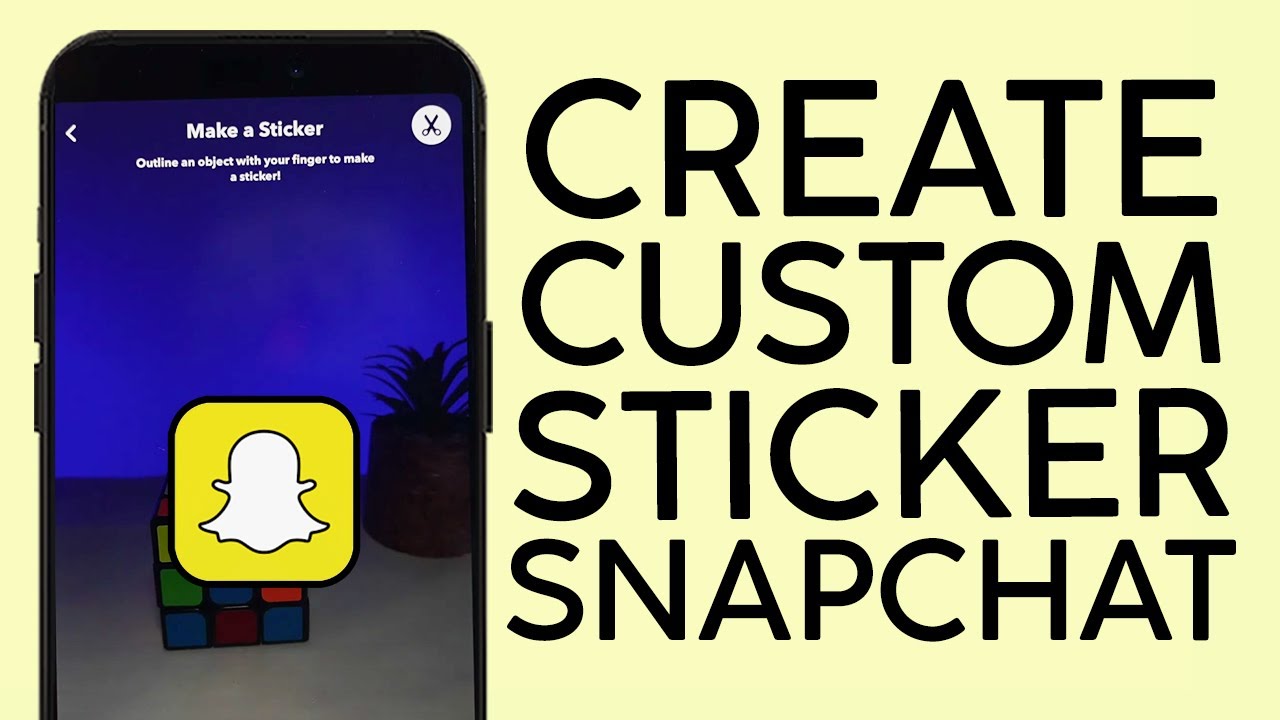
A Guide to Creating Your Own Snapchat Stickers
Snapchat stickers have become an integral part of personalizing your messages and stories, allowing for a unique blend of creativity and self-expression. Whether you’re looking to add a touch of humor, a personal touch, or simply want to stand out, creating your own stickers is a fun and accessible way to enhance your Snapchat experience. This guide will walk you through the process, from conceptualizing your design to implementing it within the app.
The allure of custom stickers lies in their ability to transform ordinary snaps into something extraordinary. They can convey emotions, mark special occasions, or even serve as inside jokes among friends. With a little imagination and a few simple tools, you can design stickers that are as unique as you are, making your communications more engaging and memorable.
## Designing Your Snapchat Sticker
### H2: Conceptualizing Your Vision
Before diving into the technical aspects, it’s crucial to brainstorm your sticker ideas. Consider what you want your sticker to represent. Are you aiming for a funny meme, a cute illustration, a personalized emoji, or perhaps a logo for your business? Sketching out your ideas can help refine your concept. Think about the colors, shapes, and overall style that will best communicate your message.
### H3: Choosing Your Design Tools
Several user-friendly tools can help you bring your vision to life. For those who prefer digital creation, apps like Procreate, Adobe Illustrator, or even simpler drawing apps on your phone can be used. If you’re not artistically inclined, online sticker makers and graphic design platforms offer templates and tools to help you create professional-looking stickers without extensive design experience.
* **Vector Graphics Software:** Adobe Illustrator, Inkscape (free), Affinity Designer
* **Raster Graphics Software:** Adobe Photoshop, Procreate, GIMP (free)
* **Online Sticker Makers:** Sticker Mule, Canva
### H3: Sticker Design Best Practices
When designing your sticker, keep Snapchat’s interface in mind. Stickers are often small, so ensure your design is clear and legible even at a reduced size. Transparent backgrounds are essential for stickers to blend seamlessly with any snap. Most design software allows you to export your creations with a transparent background (often as PNG files). Aim for bold lines and distinct shapes that will pop on screen.
Factoid: The first custom sticker packs on Snapchat were introduced in 2015, allowing users to create and share their own designs, revolutionizing how people communicated on the platform.
## Implementing Your Sticker in Snapchat
### H2: Creating a Transparent PNG
The key to a great Snapchat sticker is a transparent background. This ensures your sticker can be placed on any photo or video without a distracting white or colored box around it. When exporting your design from your chosen software, always select the PNG format and ensure the “transparent background” option is enabled.
### H3: Saving Your Sticker
Once your sticker is designed with a transparent background, save it as a PNG file. Make sure the dimensions are suitable for mobile use; a square aspect ratio (e.g., 512×512 pixels) is generally recommended. You can then transfer this file to your mobile device.
### H3: Adding Stickers to Snapchat
Snapchat’s built-in sticker creation tool allows you to upload your custom PNGs.
1. Open Snapchat and go to the camera screen.
2. Take a photo or record a video.
3. Tap the sticker icon (the smiley face) in the top toolbar.
4. Select the scissors icon to access your custom stickers.
5. Tap the ‘+’ button to add your saved PNG files.
6. Your custom sticker will now appear in your sticker library, ready to be used!
Here are some popular uses for custom Snapchat stickers:
* **Personalized Emojis:** Create unique facial expressions or reactions that aren’t available in the default set.
* **Event-Specific Graphics:** Design stickers for birthdays, holidays, or parties.
* **Brand Promotion:** Businesses can use custom stickers to increase brand visibility.
* **Inside Jokes:** Capture funny moments or phrases unique to your friend group.
## Frequently Asked Questions (FAQ)
### H2: Your Custom Sticker Queries Answered
**Q1: Can I use any image file for my Snapchat sticker?**
A: While you can upload various image files, it’s highly recommended to use PNG files with transparent backgrounds for the best results. Other formats may not support transparency, leading to a boxed appearance.
**Q2: What are the recommended dimensions for a Snapchat sticker?**
A: A square aspect ratio, such as 512×512 pixels, is generally recommended for optimal display on Snapchat.
**Q3: How do I remove a sticker from my collection?**
A: In the custom sticker section, you can usually long-press on a sticker to reveal an option to delete it.
**Q4: Can I share my custom stickers with friends?**
A: Currently, Snapchat does not have a direct feature to share custom sticker files. However, friends can screen-grab your snaps that use your stickers, and then use the “Cutout” feature to create their own sticker from it.
Factoid: The “Cutout” feature in Snapchat allows users to turn parts of a photo or video into a sticker, making it easy to share elements from existing content.
By following these steps, you can elevate your Snapchat game with personalized stickers that add a unique flair to your conversations. Experiment with different designs and have fun expressing yourself!